
Chat with your Postgres database
Updated 2026-10-10
Connect PostgreSQL and ask it what you want to know: Intellrise writes the SQL against your real schema, draws the chart, pins it to a dashboard and, on Pro, emails the report on a schedule, in one place.
The free plan covers one database, so Postgres costs nothing to try. Pro, $29 a month, adds scheduled email reports and AI that learns what your columns mean; a team of five pays $100. Setup is a read-only user and a free AI key, a few minutes in all (AI key in a minute).
- 1
Gather your PostgreSQL connection details
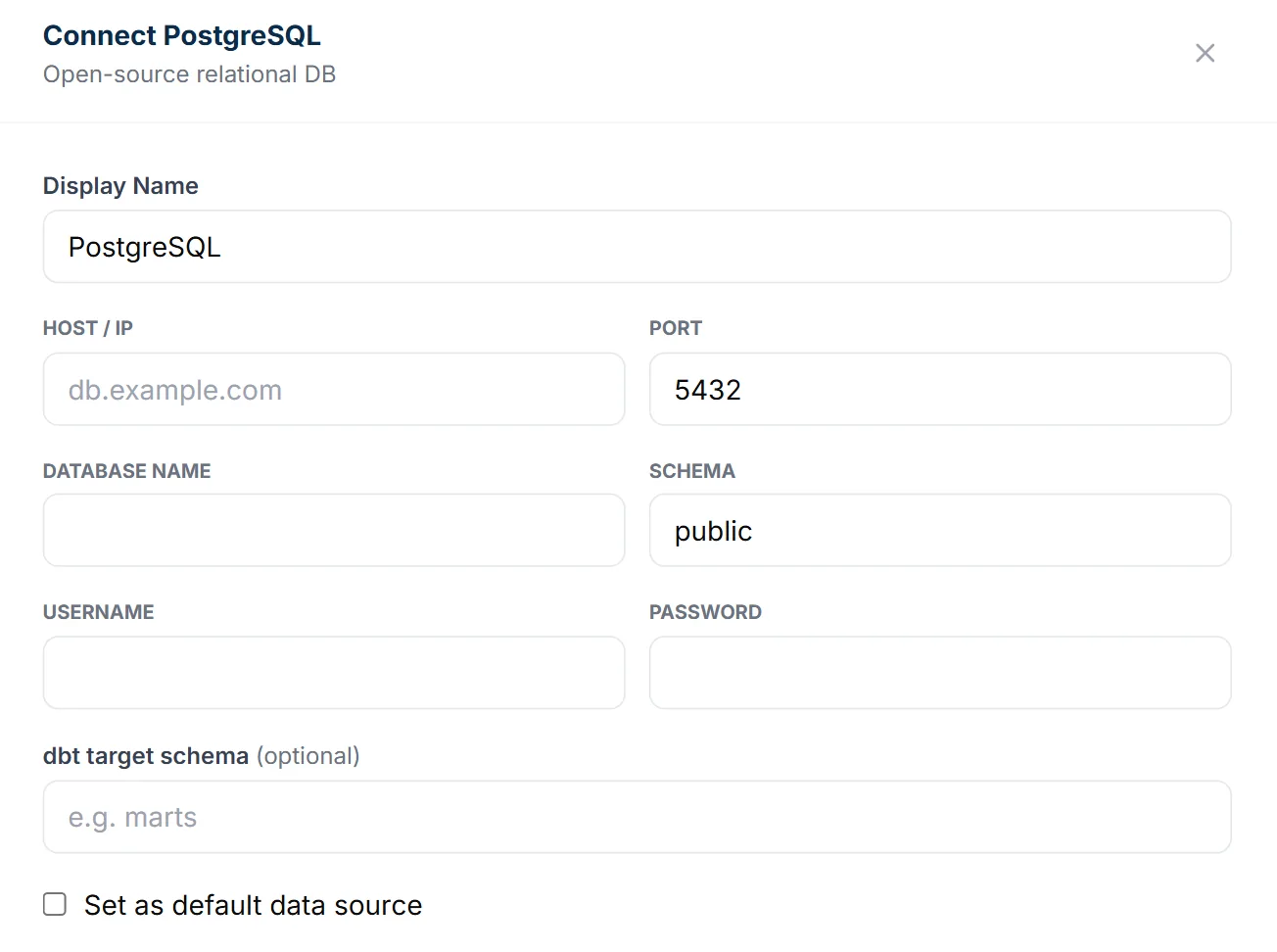
You need the host, port (usually 5432), database name, username and password, plus the schema to read (the form pre-fills “public”). A managed Postgres provider usually hands you one connection URL instead — you will be reading those values out of it, because Intellrise asks for them as separate fields and has nowhere to paste a URL. SSL is not something you decide here: Postgres connections always use sslmode=require.
- 2
Create a read-only database user (recommended)
Give the AI analyst its own user with SELECT-only access. This means it can read data to answer questions but can never modify it. A read-only role is the safest way to connect any production database to an analytics tool. The four PostgreSQL statements are written out at intellrise.com/help/database-requirements, with the error each blocked write returns.
- 3
Create your account and add your AI key
Sign up, then add an AI key. A free Google Gemini key takes about a minute to create (how); if you use a paid key instead, the AI usage is billed by your provider at their own rates, not by us.
- 4
Add the PostgreSQL connection
In the app, add a new data source, choose PostgreSQL, and enter your host, port, database, schema, user and password — separate fields, with no box for a pasted connection string and no SSL option to switch on. Click Connect: it stores the credentials encrypted and then immediately dials your database, so you get the answer on the form itself — either “Connected — N tables found” or the exact error Postgres sent back. A source that fails is still saved, so correct the details with the pencil icon and save again. Credentials are encrypted at rest.
- 5
Let the AI read and annotate your schema
The analyst reads your tables and columns and describes what they mean. If you use dbt, point it at your models so it recognises your fact and dimension tables. This is the semantic layer — and it keeps improving as you use it.
- 6
Type your first question
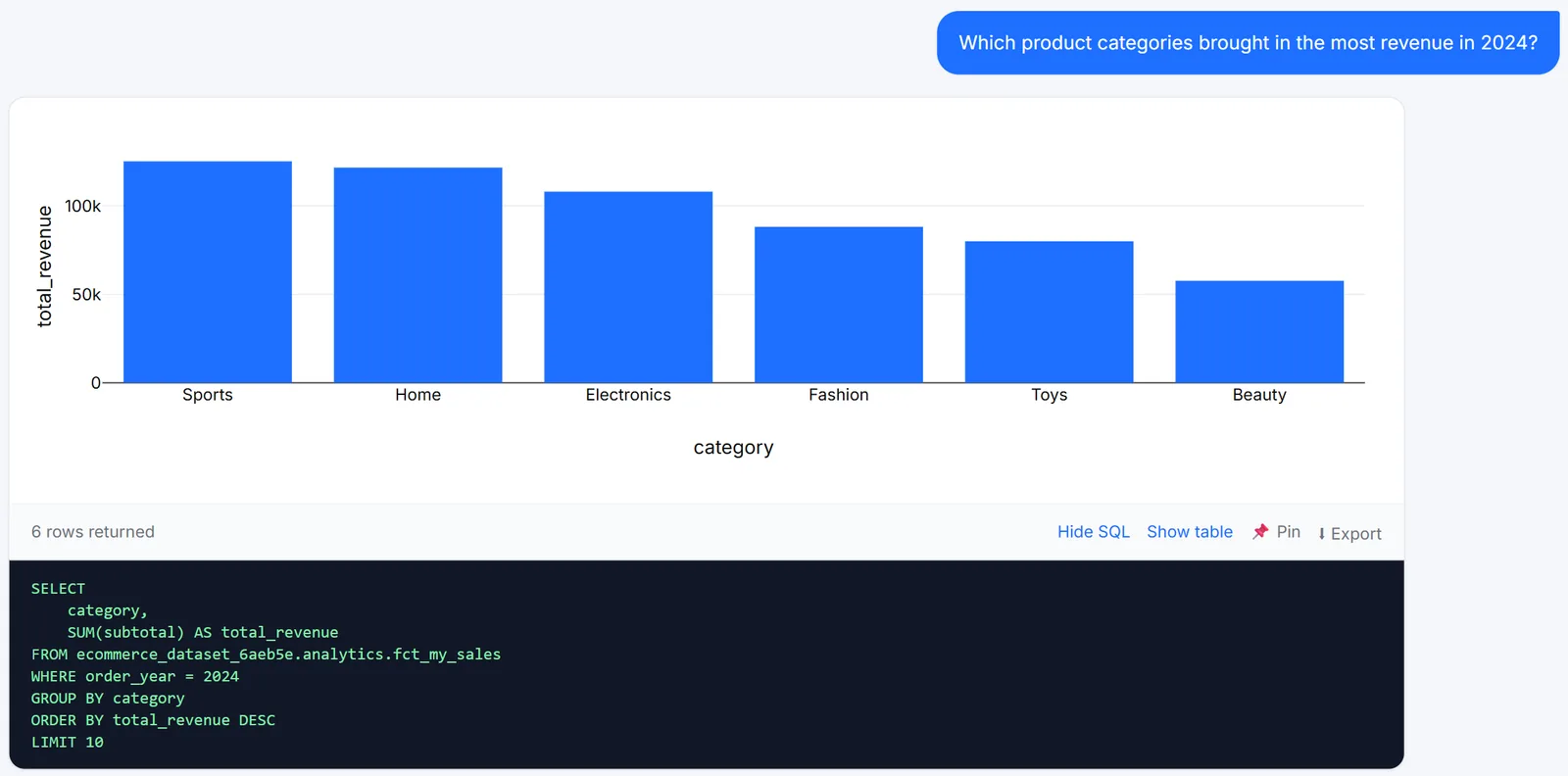
Ask something like "revenue by month this year" or "top 10 customers by orders". On a question the analyst judges complex — a join, a query spanning two sources, several steps — it shows a readable plan and waits for you to approve it before running anything; on one it judges simple it runs first and shows you afterwards. Either way you get the same two controls on every answer: Show SQL gives you the exact query that produced the number, and Show table gives you the rows it returned with their count. That is how you check a figure instead of trusting it. Refine by chatting, then pin it to a dashboard or save it as a report.
Why connect the database instead of exporting a file
Exports go stale the moment you download them, and when an assistant only ever sees that exported file it has to guess what your columns mean. A connected AI data analyst reads live data, shows the query plan in business terms before it runs a complex question, and saves what your fields mean against the source itself — so the next question already knows them, and answers stay current and consistent.
Frequently asked questions
No, and you never have to write it. On every answer the exact SQL that ran is one click away under Show SQL, together with the rows it returned under Show table — that is there whether the question was simple or complex. On complex questions you also get a readable plan to approve before anything runs at all.
Yes. Point it at your dbt models and it recognises your fact/dimension/staging conventions and uses your definitions.
Related
The one-stop AI data analyst that knows your schema.
One place from question to finished work: the SQL, the chart, a dashboard your whole team can open, and a report that emails itself every morning. It learns what your columns mean, so nobody explains a field twice. Start free with one database plus Google Sheets, or take 14 days of Pro with no card.
Every new account starts on a 14-day Pro trial with no card. After it lapses, the free tier stays free.