
Connect your data
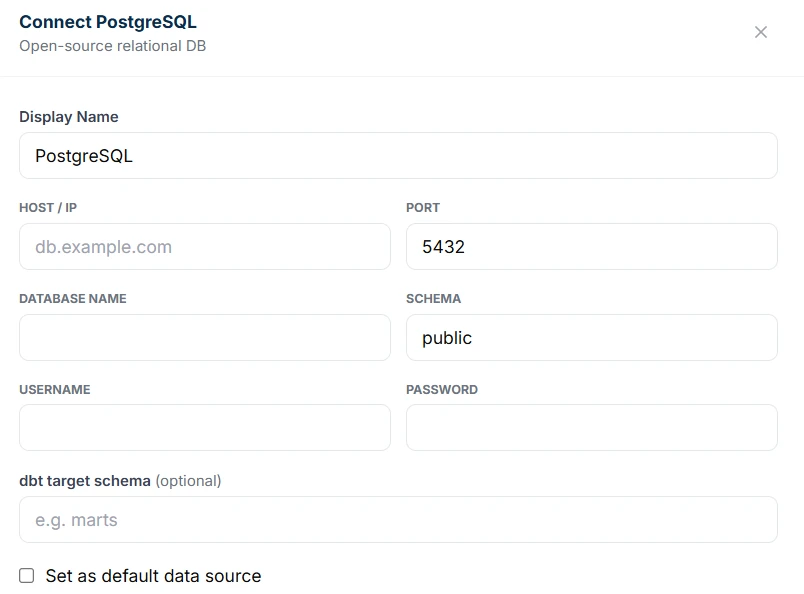
Three ways in: a Google Sheet, a CSV or Excel file, or a PostgreSQL, MySQL or Redshift database. Open Settings → Data Sources, pick one and follow the steps below. Each step shows the screen you will see.
Step 1: Open Data Sources
- Sign in at app.intellrise.com and open Settings → Data Sources.
- Click Connect Data Source and choose the type that matches your data.
- Every source you add gets its own card here, with a Test button and a pencil icon to edit it. You can add more than one.

Step 2a: Connect a database
- Choose PostgreSQL, MySQL or Redshift.
- Fill in the host, port, database name, username and password. Schema starts as “public”, and dbt target schema is optional. If your provider gives you a connection URL, copy each value out of it.
- Click Connect. Intellrise saves the source and tests it in one step: you see “Connected” with the number of tables found, or the exact error your database returned. Fix a typo with the pencil icon.
- Use a read-only user, and make sure the database accepts connections from the internet. Database requirements has the SQL for the user and a checklist for the rest.
Step 2b: Connect a Google Sheet or upload a file
- Google Sheets: click Authorize with Google and sign in. Back in Intellrise, choose the sheet on its card and pick the tabs to read. Each tab becomes a table.
- CSV Upload or Excel Upload (Pro and Team): select your file. Put the column headers in the first row.

Step 3: Ask your first question
Open Chat and ask what you would ask an analyst. Intellrise writes the SQL, runs it on your data and draws the chart. See it step by step.
Want us to set it up with you?
Write to contact@intellrise.com, or reply to our email if you have one. We will connect your data with you.