
Set up Intellrise in 20 minutes
Plan on 20 minutes for three steps: add an AI key, connect your data, ask your first question. On Team, a fourth step brings your colleagues in. Would you rather do it together? Write to contact@intellrise.com and we will walk you through it.
Before you start
Have two things ready: a Google account, for a free Gemini key, and your data. That can be a Google Sheet, a CSV or Excel file, or the login for a PostgreSQL, MySQL or Redshift database.
Step 1: Add your AI key (2 minutes)
- Sign in at app.intellrise.com, open Settings → AI Keys and click Add AI Key.
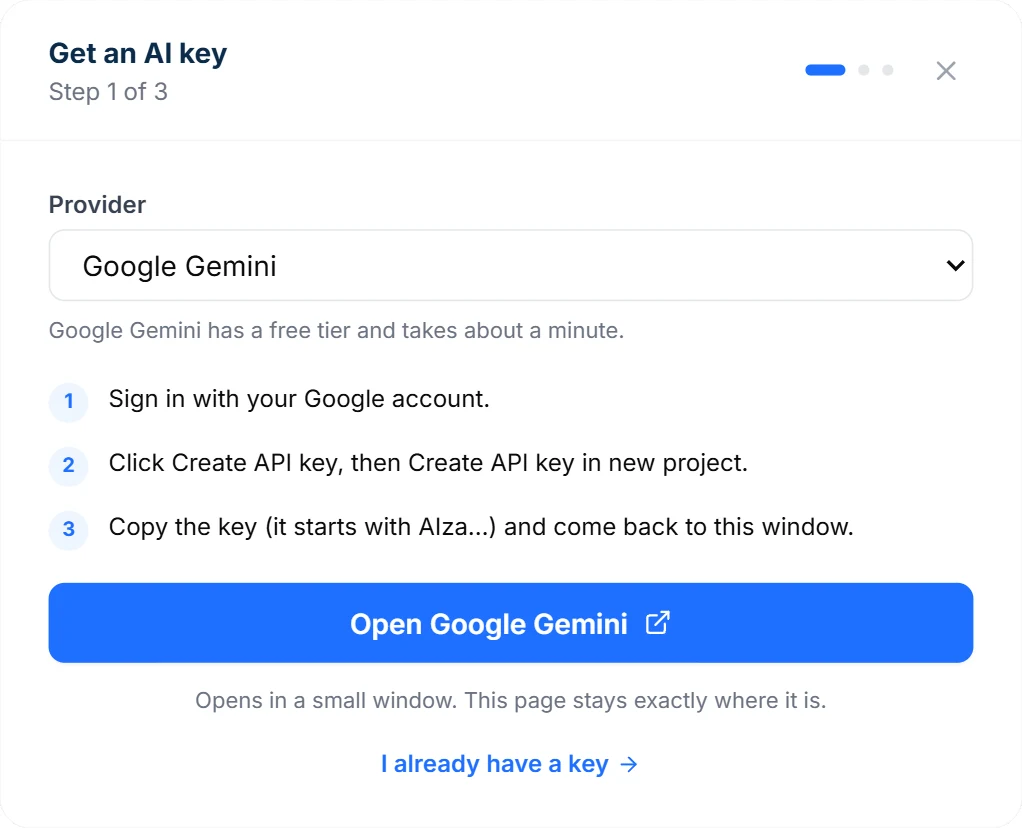
- Leave Google Gemini selected and click Open Google Gemini. Sign in, click Create API key, then Create API key in new project. No card needed.
- Copy the key (it starts with AIza), paste it into Intellrise and click Save & Activate.
Step 2: Connect your data (10 minutes)
- Open Settings → Data Sources and click Connect Data Source.
- Google Sheet: sign in with Google, pick the workbook and the tabs to read. Each tab becomes a table.
- CSV or Excel: upload the file.
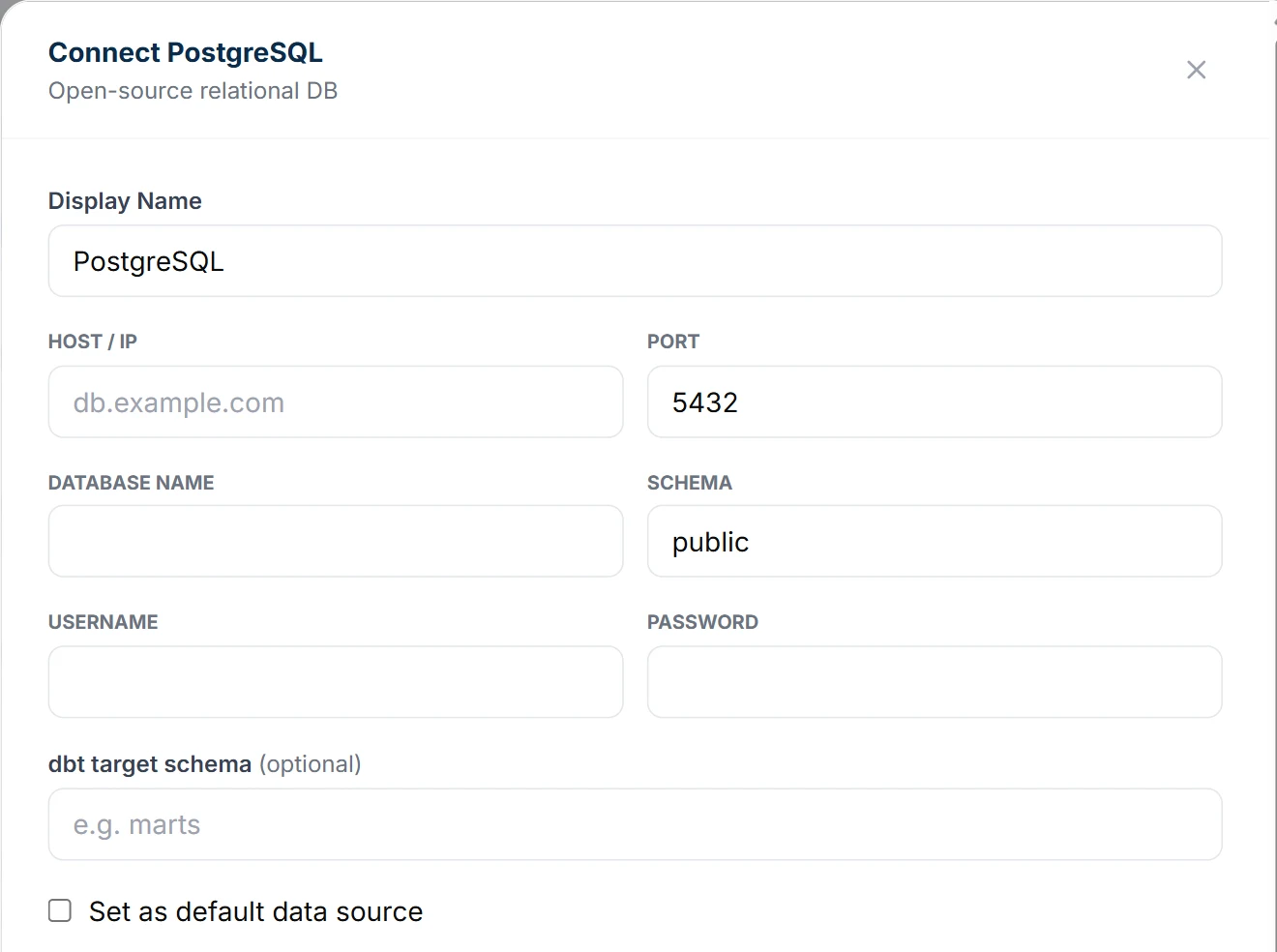
- Database: enter the host, port, database name, schema, username and password, then click Connect. Intellrise saves the connection and tests it in one step. A read-only user is best; here is how to create one.
Step 3: Ask your first question (5 minutes)
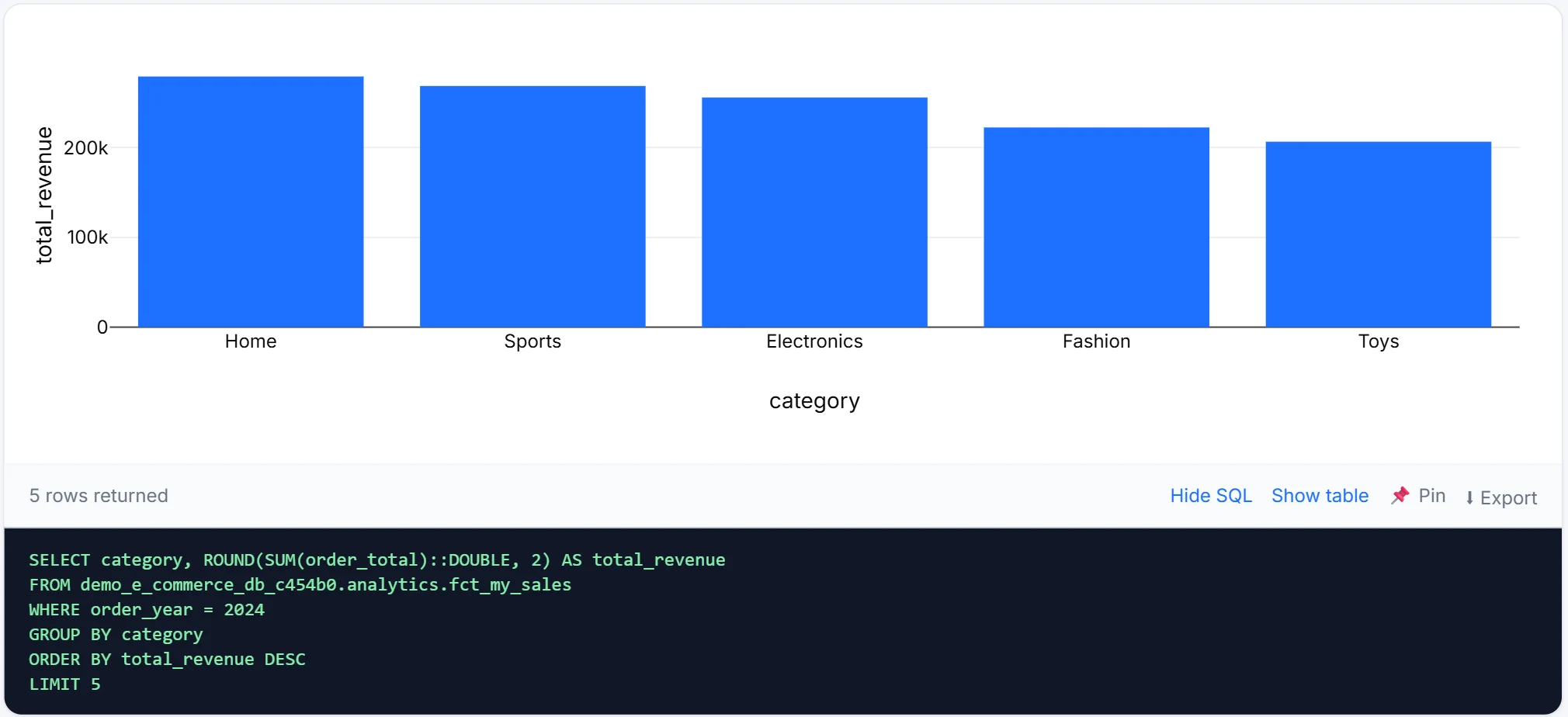
Open Chat and ask what you would normally ask an analyst, such as “Which five product categories brought in the most revenue in 2024?” Intellrise writes the SQL, runs it on your data and draws the chart.
Click Show SQL to check the query. Click Pin to keep the chart on a dashboard.
Step 4 on Team: Invite your colleagues (2 minutes)
Team is $100 a month for five people, with $20 a month for each seat after that. Buy it under Settings → Billing.
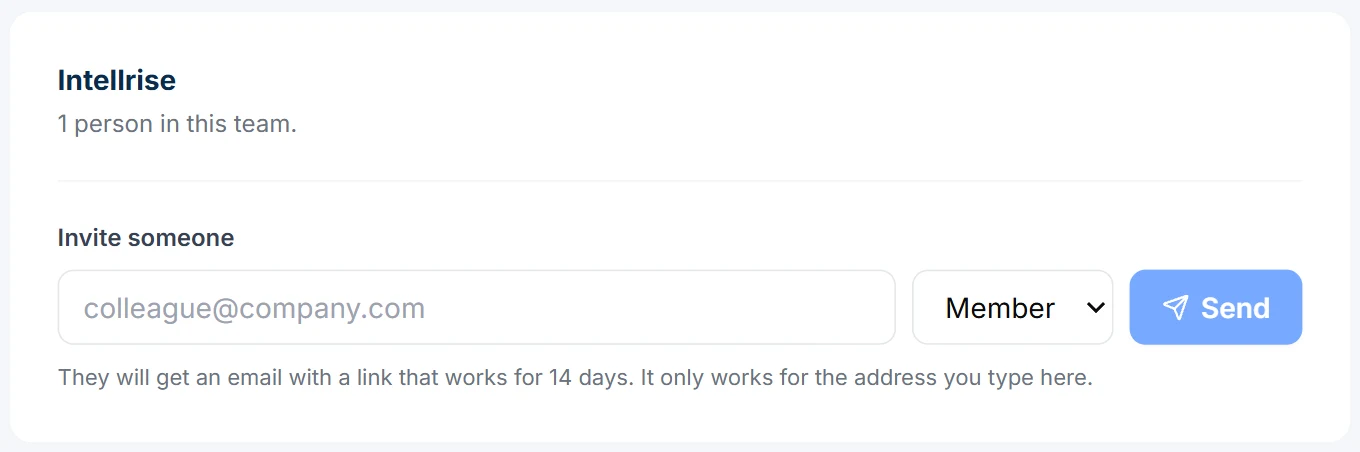
Then open Settings → Team, type a colleague's work email and click Send. They get a link that works for 14 days. Your colleagues use your AI key, so they skip step 1 and start on the dashboards you already pinned.
Want us to set it up with you?
Write to contact@intellrise.com, or reply to our email if you have one. We will take you through each step on your own data, key included.